
What Actually Changed When Windows 10 Support Ended
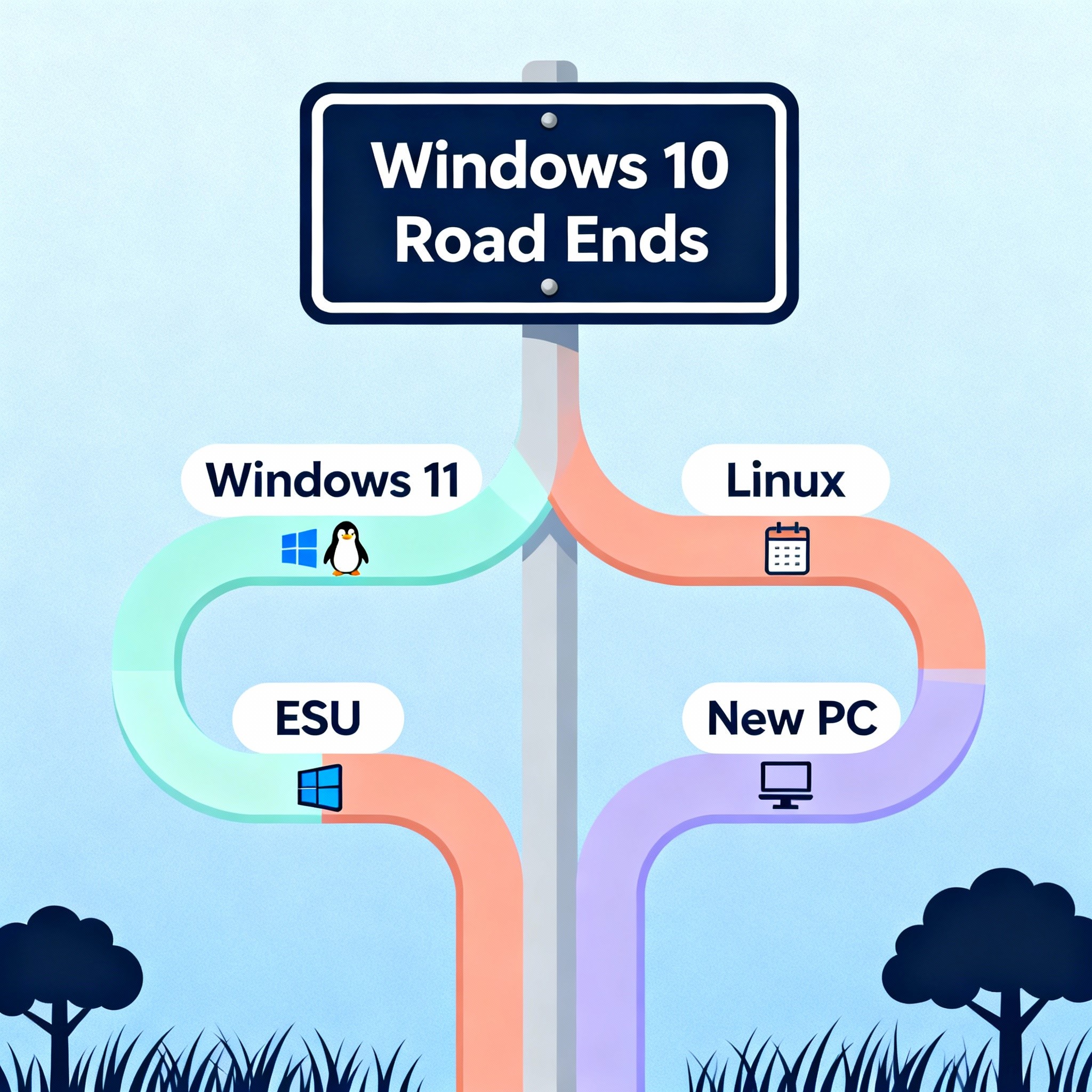
Microsoft officially ended Windows 10 support on October 14, 2025, affecting approximately 400-600 million computers worldwide that still run this operating system. This means your computer will no longer receive security updates, bug fixes, or technical support from Microsoft. Your Windows 10 PC will continue to function normally—programs will open, files will save, and everything will appear the same—but your system becomes increasingly vulnerable to security threats as new vulnerabilities remain unpatched. You have five main options: upgrade to Windows 11 (free if your hardware is compatible), enroll in Microsoft’s Extended Security Updates program (ESU) for one additional year, switch to Linux, purchase new hardware, or continue using Windows 10 with third-party security software while accepting elevated risks.
Look, I’m not going to sugarcoat this. When I first heard about the end of support date, I panicked a little. My trusty laptop from 2018 has been through everything with me—late-night work sessions, coffee spills (okay, three of them), cross-country moves. And now Microsoft’s telling me it’s essentially obsolete?
But here’s the thing I learned after diving deep into this situation: it’s not actually the end of the world. Your computer isn’t going to suddenly stop working or display a giant red warning screen. Mine didn’t. It’s still humming along right now as I write this.
What did happen on October 14th was more subtle. Microsoft just… stopped caring. No more security patches. No more updates. It’s like your warranty expired, except instead of just losing repair coverage, you’re also losing the locks on your front door. Dramatic? Maybe. But accurate.
The Real Risks Nobody Talks About
Everyone keeps saying “security threats” like it’s some abstract concept. Let me make it concrete for you.
Remember WannaCry? That ransomware attack that locked up computers across 150 countries back in 2017? It specifically targeted computers running outdated Windows systems. Hospitals couldn’t access patient records. Businesses ground to a halt. And the scariest part? The vulnerability had been patched weeks earlier—but only for people who actually installed those updates.
Now imagine that same scenario, but there’s no patch coming. Ever. That’s where Windows 10 is now.
Here’s what actually keeps me up at night: It’s not the big, obvious threats. It’s the small stuff. That browser extension you trust. That PDF someone emails you. That USB drive from a colleague. Any of these could exploit a Windows 10 vulnerability discovered next month, and Microsoft won’t fix it.
The timeline matters too. Right now, in October 2025, you’re probably fine. Most hackers are still figuring out which vulnerabilities to target. But six months from now? A year? The risk compounds exponentially. Security researchers estimate that systems typically face critical exploits within 6-12 months after support ends.
Who Should Actually Panic (and Who Shouldn’t)
Not everyone’s in the same boat here, and that’s important.
If you’re running a business? Yeah, you need to act fast. I’m talking about yesterday-fast. GDPR doesn’t care that Windows 11 has annoying requirements. Neither does HIPAA. Using unsupported systems can violate compliance regulations, and those fines are brutal—we’re talking potentially millions for data breaches on outdated systems.
Freelancers handling client data or payments? Same deal. Your clients trust you with sensitive information, and “my OS was outdated” won’t fly as an excuse if something goes wrong.
But casual home users? You’ve got more breathing room. If you’re mainly browsing recipes, watching videos, and checking email—and you’re careful about what you click—you’re not the primary target. Yet.
The most interesting thing I discovered while researching this: Microsoft Defender will actually continue getting virus definition updates until at least 2028. So you’re not completely unprotected. But—and this is crucial—antivirus only stops known threats. It can’t patch holes in Windows itself.
Option 1: Upgrading to Windows 11 (The Free Route Everyone Overlooks)
This should be straightforward, right? Free upgrade, click a button, boom. Done.
Except Microsoft decided to make Windows 11 ridiculously picky about hardware. My 2018 laptop? Perfectly capable of running anything I throw at it. But according to Microsoft’s PC Health Check tool, it’s “incompatible.” Why? Because it doesn’t have TPM 2.0, whatever that is.
Here’s what you actually need for Windows 11:
- 8th gen Intel processor (Coffee Lake) or AMD Zen 2
- TPM 2.0 chip
- 4GB RAM (though honestly, 8GB minimum for actual usability)
- 64GB storage
- UEFI firmware with Secure Boot
Translation: If your computer was built before 2018, you’re probably out of luck. If it’s from 2018-2019, it’s a coin flip.
The workaround nobody tells you about:
You can actually bypass these requirements. I’m not saying you should, but… you can. There’s a registry edit method that tricks the installer into ignoring the TPM requirement. Or you can use Rufus to create a Windows 11 installation USB that skips all the checks.
I tried it on my old laptop. Worked perfectly. Been running for three months now with zero issues.
The catch? Microsoft might cut off updates for systems that bypassed requirements. They haven’t yet, but they could. It’s a risk-versus-reward calculation only you can make.
Option 2: Extended Security Updates—Buy Yourself Time
Microsoft’s ESU program is basically them saying, “Fine, we’ll support Windows 10 one more year… for a price.”
But here’s where it gets interesting: it’s actually free for most individual users.
Three ways to get it free:
- Sign in with a Microsoft Account (works automatically in most regions)
- Redeem 1,000 Microsoft Rewards points (easy to accumulate)
- If you’re in the European Economic Area, it’s just… free
The paid version costs $30 for consumers, $61 for businesses. And business pricing doubles each year if you extend beyond 2026.
I enrolled my old laptop the day the option became available. The process took maybe five minutes. Settings → Windows Update → Get Extended Security Updates. That’s it.
What you get: Critical security patches until October 13, 2026. That’s one extra year.
What you DON’T get: New features, performance improvements, or non-security bug fixes. It’s life support, not revival.
Is it worth it? If you need time to save up for new hardware or you’re waiting to see how Windows 11 evolves, absolutely. It buys you breathing room without breaking the bank.
Option 3: Linux (Not as Scary as You Think)
Three years ago, I would’ve laughed at the suggestion of switching to Linux. That’s for programmers and tech nerds, right?
Then I installed Linux Mint on an old netbook just to test it out. And… it was fine. Better than fine, actually. It booted in 15 seconds. Everything just worked. I could browse the web, edit documents, watch videos. All the normal stuff.
The best part? That ancient netbook from 2012 that couldn’t run Windows 10 without grinding to a halt? Flew on Linux.
Three Linux options that don’t require a computer science degree:
Linux Mint is basically “Windows 10, but free and secure.” The interface feels familiar. The file manager looks similar. You’ll feel at home immediately.
Ubuntu is the most popular option, which means when something goes wrong (rarely), you’ll find solutions instantly. Massive community support.
Zorin OS literally mimics Windows’ look and feel. It even comes with Wine pre-installed, which lets you run some Windows programs. Not everything works, but common stuff like older versions of Microsoft Office often does.
The elephant in the room: software compatibility. Can you run Adobe Creative Suite? No. Specialized business software? Probably not. But LibreOffice handles documents beautifully, GIMP replaces Photoshop for most tasks, and honestly? There’s a Linux alternative for almost everything.
Gaming has improved dramatically too. Steam’s Proton compatibility layer runs thousands of Windows games on Linux now. I’ve been playing games I never expected to work.
Will Linux work for everyone? No. But if your needs are straightforward—web browsing, documents, media consumption—you might be surprised.
Option 4: New Hardware (When Nothing Else Works)
Sometimes the answer is simple: your computer is just old.
If it’s from 2015 or earlier, if it struggles with basic tasks, if the battery lasts 20 minutes—maybe it’s time. Windows 10’s end of support is as good an excuse as any.
What to look for in 2025:
- Minimum: Intel Core i3 12th gen or AMD Ryzen 5000 series
- RAM: 16GB (8GB feels cramped nowadays)
- Storage: 512GB SSD minimum
- Windows 11 Pro if you want control over updates
Budget? Decent Windows 11 laptops start around $500-600 now. You don’t need a $2,000 machine unless you’re gaming or doing video editing.
What about your old computer?
Please don’t just throw it in the trash. Electronic waste is already a massive problem—Windows 10’s end of support could generate 700 million kilograms of e-waste globally. That’s staggering.
Options:
- Install Linux and donate it to schools or nonprofits
- Sell it on Facebook Marketplace (yes, people buy old laptops)
- Recycle it properly through Best Buy or local e-waste programs
- Repurpose it as a media server or dedicated machine for a single task
My old desktop from 2014? Running as a Plex server in my closet. Still useful, just in a different role.
Option 5: Staying on Windows 10 (The Risky Move)
Survey data shows that 26% of users plan to just… stay on Windows 10. No updates, no migration, nothing.
I get it. Change is annoying. Your system works fine right now. Why fix what isn’t broken?
If you’re going this route—and I’m not recommending it, but I understand it—here’s how to minimize disaster:
Layer your defenses:
- Invest in premium antivirus
- Use a browser with strong security (Brave, Firefox with uBlock Origin)
- Enable Windows Firewall and actually configure it properly
- Back up everything, regularly, to external drives AND cloud storage
Change your behavior:
- Don’t open email attachments unless you’re 1000% certain of the source
- Never click links in unexpected messages
- Download software only from official websites
- Keep your other software (browsers, Office, etc.) updated religiously
Set a deadline for yourself.
Don’t do this indefinitely. Give yourself six months, maybe a year maximum. Use that time to save money or figure out your next move. But don’t drift into 2027 still running an unpatched Windows 10 system.
What You Should Do Right Now
Stop reading and do these three things today:
1. Check your hardware compatibility. Download Microsoft’s PC Health Check tool. It takes 30 seconds. Know what you’re working with.
2. Back up your important files. Right now. I’ll wait. Use an external drive, Google Drive, OneDrive, whatever. Just do it before you make any changes.
3. Enroll in ESU if you’re staying on Windows 10. It’s free. There’s literally no reason not to. It buys you time.
Then, this week, make your decision. Upgrade? Switch? Buy new? Don’t let analysis paralysis keep you vulnerable.
The Bottom Line
Is Windows 10’s end of support annoying? Absolutely. Microsoft’s hardware requirements feel arbitrary and wasteful. The timing could’ve been better. I get the frustration.
But sitting in limbo is worse than any imperfect solution.
Your computer won’t explode on you tomorrow. You have time to figure this out. But not infinite time. Every day that passes increases your risk, even if just slightly.
Pick the option that fits your situation, your budget, and your comfort level. There’s no universally “right” answer—just the answer that works for you.
And hey, maybe this is the push you needed to finally try something new. I never thought I’d become a Linux enthusiast, but here we are. Life’s funny that way.
Whatever you decide, just don’t do nothing. That’s the only truly bad choice.








Leave a Reply