
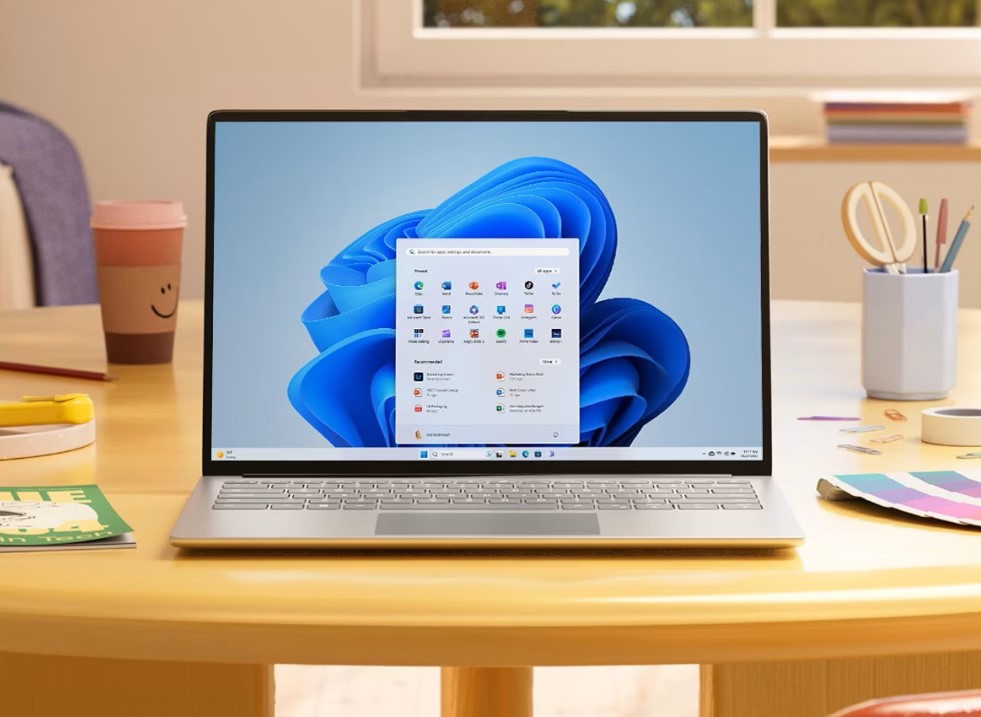
Yes, you can gamify your Windows 11 desktop background right now using built-in features, creative organization systems, and free third-party tools. While Microsoft is developing an AI-powered Dynamic Wallpaper feature, you don’t need to wait—this guide shows you seven proven methods to turn wallpaper selection into an engaging, rewarding experience that makes personalizing your desktop genuinely fun.
The concept is simple: instead of randomly changing your background, you create systems that reward you with new wallpapers, track your “progress” through themed collections, or tie background changes to real achievements in your daily routine. Here’s everything you need to know.
Method 1: Transform Windows Spotlight Into a Daily Discovery Game
Windows 11’s built-in Spotlight feature already works like a discovery game—you just need to approach it with the right mindset.
How to set it up:
- Right-click your desktop and select “Personalize”
- Click “Lock screen” in the left sidebar
- Select “Windows spotlight” from the dropdown menu
- Enable “Get fun facts, tips, and more on your lock screen”
The gamification twist:
Create a “World Discovery Journal” in OneNote or a simple text document. Each day when you unlock your PC, Windows Spotlight shows a new location with interesting facts. Your challenge: learn one fact about the location and record it. After 30 days, you’ll have discovered 30 places around the world without leaving your desk.
Leveling up:
Set monthly themes. January = Asia, February = Europe, March = Nature reserves. When Spotlight shows an image matching your theme, take a screenshot and add it to a special “Achievement Unlocked” folder.
Method 2: Create a Progression System with Slideshow Mode
The slideshow feature becomes a natural progression system when you organize wallpapers into difficulty “levels”.
Step-by-step setup:
- Open Settings (Win + I)
- Navigate to Personalization > Background
- Select “Slideshow” from the dropdown
- Click “Browse” to choose your first folder
- Set change interval (recommended: 1 hour for work, 30 minutes for personal use)
- Enable “Shuffle the picture order”
Building your level system:
Create folders on your PC with this structure:
- Level 1: Minimal/Calming (weeks 1-2)
- Level 2: Nature Landscapes (weeks 3-4)
- Level 3: Abstract Art (weeks 5-6)
- Level 4: Space & Cosmos (weeks 7-8)
- Level 5: Custom AI Creations (weeks 9+)
Switch to the next level every two weeks. The anticipation of “leveling up” to more complex, interesting wallpapers creates genuine excitement.
Pro tip for sourcing wallpapers:
Download high-quality collections from Unsplash (unsplash.com/wallpapers), WallpaperHub, or Reddit’s r/wallpapers. Aim for 20-30 images per level to maintain variety.
Method 3: Use Windows 11’s Built-In AI Tools to Create Achievement Wallpapers
Windows 11 now includes several AI-powered features you can use to create personalized wallpapers that commemorate achievements.
Paint with Image Creator (Copilot):
- Open Paint (search “Paint” in Start menu)
- Click the “Image Creator” button in the toolbar
- Describe your achievement wallpaper in the prompt box
Example prompts for achievement wallpapers:
- “Minimalist mountain peak at golden hour representing completing a difficult project, 4K desktop wallpaper”
- “Abstract geometric pattern in blue and gold celebrating a personal milestone, ultrawide format”
- “Peaceful zen garden with morning light for meditation achievement, 3840×2160”
The Image Creator uses DALL-E technology and gives you 15 boosts per day on free accounts.
Photos App AI Restyle:
- Open any existing wallpaper in the Photos app
- Click “Edit image” > “Restyle image”
- Choose from AI-generated style variations
- Save your favorite as a new achievement wallpaper
This feature arrived in Windows 11’s 2024 update and works entirely offline after initial download.
Method 4: Set Up Live Wallpapers with Lively Wallpaper (The Ultimate Gamification)
Live wallpapers take gamification to the next level by making your desktop feel alive and responsive.
Installation and setup:
- Open Microsoft Store (Win + S, search “Microsoft Store”)
- Search for “Lively Wallpaper”
- Click “Get” to install (completely free)
- Launch the app after installation
- Click “Library” to browse included wallpapers
Setting your first live wallpaper:
- Browse the collection (Rain, Fluids, Clouds, Abstract categories)
- Click the three dots next to any wallpaper
- Select “Set as wallpaper”
- Watch your desktop come to life
Customization options:
Click “Customize” to adjust color schemes, animation speed, and interactive elements. Most wallpapers respond to cursor movement, creating an interactive experience.
Creating custom live wallpapers:
- Click “Add Wallpaper” in the top-right corner
- Upload video files (MP4, WebM), GIF images, or paste YouTube URLs
- The app converts them to live backgrounds automatically
Critical performance note:
Live wallpapers consume 5-15% CPU and will drain laptop batteries faster. Configure performance settings:
- Click Settings (gear icon) in Lively Wallpaper
- Under “Performance,” select “Pause wallpaper when app fullscreen”
- Enable “Pause when on battery” for laptops
- Set quality to “Medium” for lower-end systems
This dramatically reduces resource usage while maintaining visual appeal.
Method 5: Microsoft’s Upcoming Dynamic Wallpaper Feature (What to Expect)
Microsoft is actively developing an AI-powered “Dynamic Wallpaper” feature for Windows 11, currently in testing phases.
What we know:
The feature was discovered in Windows 11 Insider builds in July 2025. It will automatically update your wallpaper based on user preferences and potentially time of day, similar to macOS’s dynamic backgrounds.
Expected features:
- AI-selected wallpapers matching your activity patterns
- Automatic rotation based on time and calendar events
- Integration with Microsoft 365 for work/personal mode switching
- Contextual backgrounds that adapt to current tasks
Current status (October 2025):
The feature appears in preview builds but isn’t yet functional even for Windows Insiders. Microsoft hasn’t announced a public release date.
Historical context:
Windows Vista included “DreamScenes” (video wallpapers) but removed the feature in Windows 7 due to performance concerns. Windows 11 is bringing native video wallpaper support back in late 2025 or early 2026, fifteen years later.
Method 6: Build a Reward System Using Power Automate Desktop
For advanced gamification, create automated wallpaper changes triggered by achievements using Windows 11’s free Power Automate Desktop.
Basic automation flow:
- Install Power Automate Desktop (free with Windows 11)
- Create a new flow: “Achievement Wallpaper Changer”
- Set up trigger conditions (time-based, file creation, app closing)
- Add action: “Set Windows wallpaper” with path to reward image
Example use case:
When you complete a task and save a file with “DONE” in the filename, the automation detects it and changes your wallpaper to one from your “Victory” folder.
Manual gamification alternative:
If automation seems too complex, create a simple spreadsheet:
- Column A: Achievement (e.g., “Completed workout,” “Finished report”)
- Column B: Date completed
- Column C: Wallpaper unlocked (link to specific image file)
Each time you log an achievement, manually change to the corresponding wallpaper. The tactile process of changing it yourself can be more satisfying than automation.
Method 7: Maximize Wallpaper Quality with Technical Optimizations
Gamification loses impact if wallpapers look compressed or blurry. These technical tweaks ensure maximum visual quality.
Disable Windows wallpaper compression:
- Press Win + R to open Run dialog
- Type “regedit” and press Enter
- Navigate to:
HKEY_CURRENT_USER\Control Panel\Desktop - Right-click in the right pane > New > DWORD (32-bit) Value
- Name it “JPEGImportQuality”
- Double-click and set Value data to “100”
- Restart your PC
This forces Windows to use uncompressed wallpapers, significantly improving quality.
Optimal resolutions for different displays:
- 1080p monitors: 1920×1080 minimum
- 1440p (2K): 2560×1440 recommended
- 4K displays: 3840×2160 for sharpest quality
- Ultrawide (21:9): 3440×1440 or 5120×2160
Always download wallpapers matching or exceeding your native resolution.
Best file formats:
- PNG: Best quality, larger file sizes (recommended for static images)
- JPEG: Good quality, smaller files (acceptable for photos)
- WebP: Modern format with excellent compression (supported in Windows 11)
Avoid BMP files—they’re massive and offer no quality advantage over PNG.
Bonus: Creating Theme-Based Challenges
Combine multiple methods into monthly challenges that make wallpaper selection genuinely engaging.
January Challenge: “Around the World”
- Week 1: Asian landscapes
- Week 2: European architecture
- Week 3: African wildlife
- Week 4: American natural wonders
Source 7 wallpapers per week and use slideshow mode. Research one fact about each location as it appears.
February Challenge: “Minimalism Evolution”
- Start with ultra-minimal solid colors
- Gradually progress to geometric patterns
- End with complex abstract minimalism
- Track how the changing backgrounds affect your focus
March Challenge: “AI Artist”
- Use Paint Image Creator to generate one custom wallpaper daily
- Improve prompts based on previous results
- By month end, you’ll have mastered AI image generation.
FAQ: Gamifying Windows 11 Backgrounds
Can I automatically change wallpaper based on my mood or activity?
Not natively in Windows 11 yet. Microsoft’s upcoming Dynamic Wallpaper feature may include this, but it’s not currently available. You can manually organize mood-based folders and switch between them using the slideshow feature, or use Power Automate Desktop to trigger changes based on calendar events or app usage.
Will live wallpapers slow down my computer?
Yes, animated wallpapers typically use 5-15% CPU and increase power consumption. However, Lively Wallpaper includes performance settings that pause animations when running games or fullscreen apps, and when on battery power. For office PCs or desktops, the performance impact is minimal with modern hardware.
When will Windows 11 get native dynamic wallpapers?
Microsoft is testing Dynamic Wallpaper features in Windows 11 Insider builds as of July 2025, but hasn’t announced a public release date. Based on development patterns, expect late 2025 or early 2026. Native video wallpaper support is confirmed for upcoming updates.
How do I create a reward system for unlocking new wallpapers?
Use a habit tracker app like Habitica or Streaks alongside your wallpaper system. When you complete a goal, “unlock” a new wallpaper from a special folder you’ve prepared. Alternatively, use Power Automate Desktop to trigger wallpaper changes when you complete tasks. The manual approach often feels more rewarding than automation.
What’s the best source for high-quality wallpaper collections?
Unsplash offers free 4K+ wallpapers organized by theme, Reddit’s r/wallpapers has community-curated collections, and Microsoft’s own wallpaper gallery (microsoft.design/wallpapers) includes official Windows themes. For AI-generated options, use Windows 11’s built-in Paint Image Creator.
Can I use different wallpapers on multiple monitors?
Yes. Right-click any image file, select “Set as desktop background,” then right-click your desktop and choose “Personalize” > “Background.” You’ll see each monitor listed separately. Lively Wallpaper also supports multi-monitor configurations with different live wallpapers per screen.
Taking Action: Your First Week Plan
Start simple and build complexity:
Day 1: Enable Windows Spotlight and start your discovery journal.
Day 2-3: Organize 20-30 wallpapers into your first “Level 1” folder and enable slideshow mode.
Day 4: Install Lively Wallpaper and experiment with one live background.
Day 5: Disable wallpaper compression for maximum quality.
Day 6: Create your first AI-generated wallpaper using Paint Image Creator.
Day 7: Set up your monthly theme challenge and mark the calendar for when you’ll “level up” to Level 2 wallpapers.
By turning wallpaper selection into a structured, rewarding activity, you transform a mundane personalization task into something you actually look forward to. The key is consistency—commit to engaging with your wallpaper system daily, and you’ll find it genuinely enhances your computing experience.





Leave a Reply